This post connects the two SQL nodes to Azure Arc so that people can sign in to SQL Server with Microsoft Entra accounts, including multifactor authentication.
Why bring Entra into a lab
On-premises SQL Server normally trusts two kinds of identity: Active Directory accounts and SQL logins. Part 3 showed the limit of both. The laptop was outside the lab domain, so the dashboard needed a SQL login with its own password to manage.
Microsoft Entra sign-in removes that dependency on domain membership. It also brings multifactor authentication and the same account lifecycle as Microsoft 365.
What has to be true first
- SQL Server 2025 on Windows, connected to Azure Arc. Microsoft’s managed identity setup lists both as prerequisites, along with the latest Azure Extension for SQL Server.
- An availability group, not a failover cluster instance. Microsoft Entra authentication supports standalone instances and availability groups. Failover cluster instances are not supported, which is one reason this series built an availability group.
- Outbound internet access from both nodes. The NAT rule from Part 1 provides it.
- An Azure subscription in the same tenant as the accounts that will sign in.
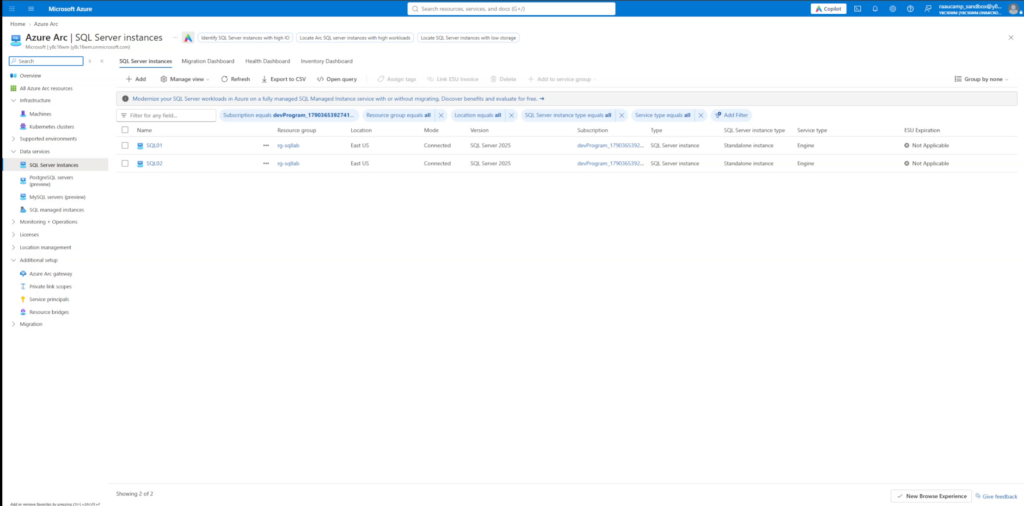
Step 1: Connect both nodes to Azure Arc
Azure Arc registers a server that runs outside Azure as a resource inside it. The Azure portal generates an onboarding script to run on each server, and the SQL Server instance then appears as a “SQL Server enabled by Azure Arc” resource.
Step 2: Turn on the managed identity
A managed identity is an Entra identity that Azure creates and maintains for the server. SQL Server 2025 uses it to look up users and groups in the directory, with no secret to store or rotate.
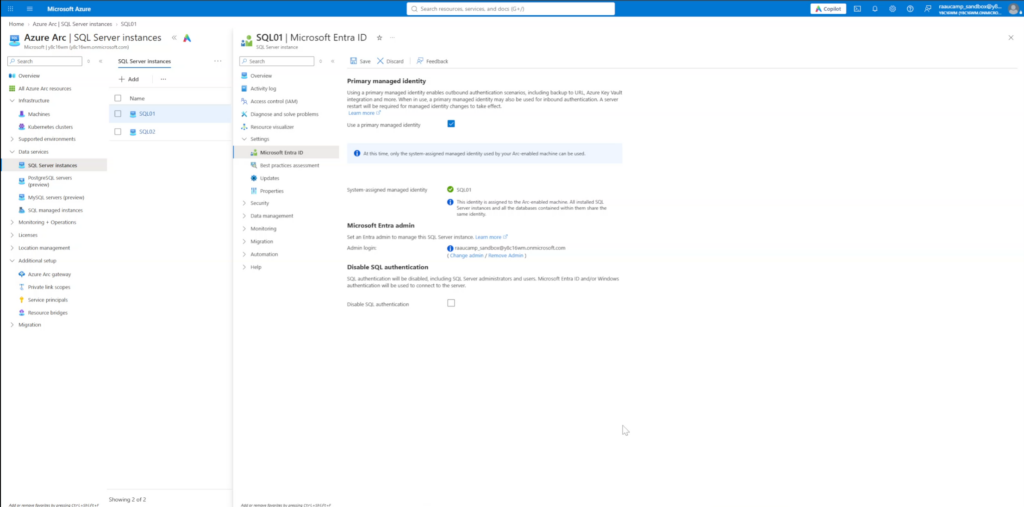
For each node, in the Azure portal:
- Open the SQL Server enabled by Azure Arc resource.
- Under Settings, select Microsoft Entra ID and Purview.
- Tick “Use a primary managed identity” and save.
If the option is missing, check that the instance is connected to Azure Arc and has the latest SQL extension.
Step 3: Let the identity read the directory
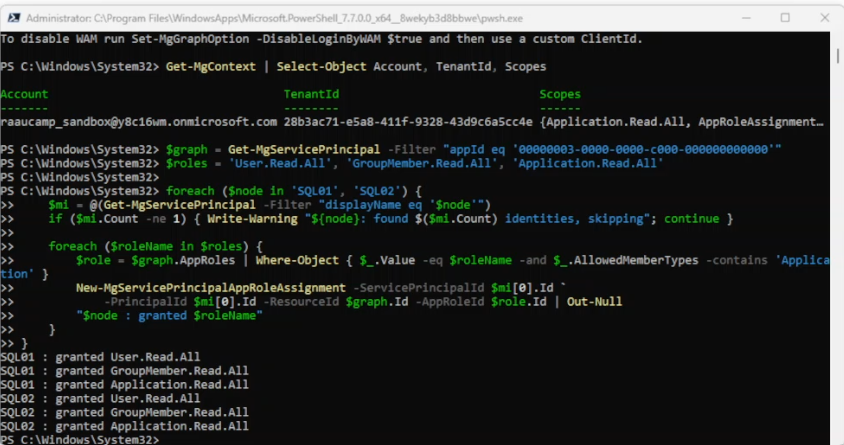
Each node’s managed identity needs three Microsoft Graph application permissions:
| Permission | What it lets SQL Server read |
|---|---|
| User.Read.All | Entra user information |
| GroupMember.Read.All | Entra group information |
| Application.Read.All | Entra service principal information |
Two rules apply. The permissions must be assigned directly to each managed identity, because membership of a security group does not grant them. Only a Privileged Role Administrator or higher can assign them.
Microsoft supplies a PowerShell script for this in Set up managed identity and Microsoft Entra authentication for SQL Server enabled by Azure Arc. It connects with Connect-MgGraph, finds the managed identity by the Arc machine’s name, and assigns each permission with New-MgServicePrincipalAppRoleAssignment. It needs PowerShell 7.5 or later and version 2.28 or later of the Microsoft.Graph module.
Step 4: Create Entra logins
An Entra login is created from the directory instead of with a password. The statements below show the pattern.
					CREATE LOGIN [reader@yourtenant.onmicrosoft.com] FROM EXTERNAL PROVIDER;

USE LabDB;
CREATE USER [reader@yourtenant.onmicrosoft.com] FOR LOGIN [reader@yourtenant.onmicrosoft.com];
ALTER ROLE db_datareader ADD MEMBER [reader@yourtenant.onmicrosoft.com];
The lesson from Part 3 still holds. Logins belong to each node, so create the login on both SQL01 and SQL02. The database user lives in LabDB and replicates on its own.
Step 5: Sign in
In SQL Server Management Studio, connect to AGLISTENER, choose the Microsoft Entra MFA authentication option, and sign in with the tenant account. This query confirms who you are and which node answered:
SELECT SUSER_SNAME() AS SignedInAs, @@SERVERNAME AS AnsweredBy;
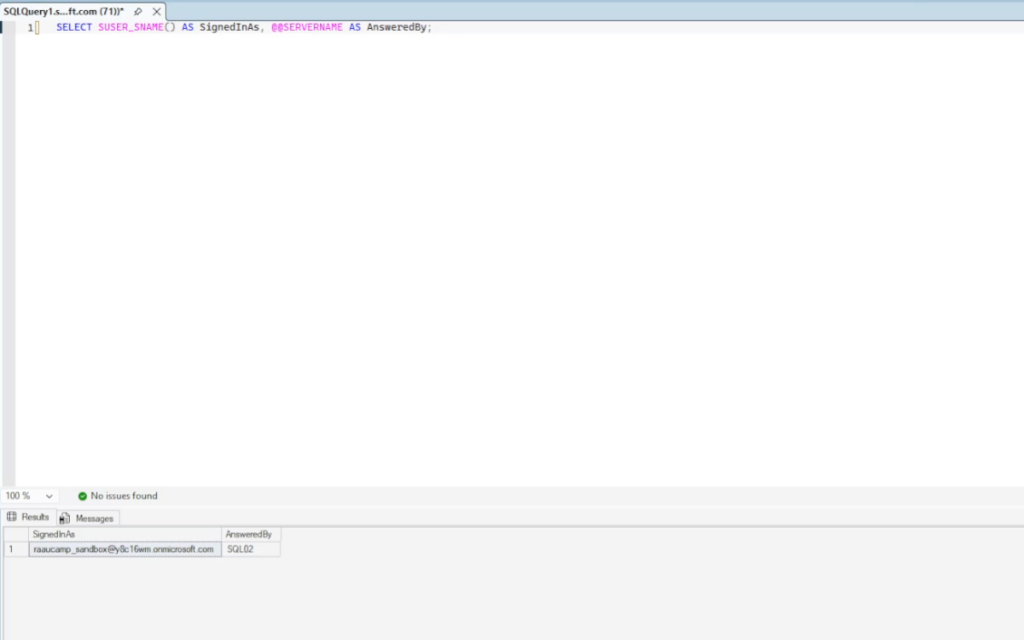
Then fail the group over, as in Part 2, and connect again. The sign-in should work against whichever node is primary.
Alerts through Microsoft 365
What I would tell someone starting this
- Entra sign-in is a design input, not an add-on. It rules out failover cluster instances, so it belongs in the first conversation about the architecture.
- Permissions go to each node’s identity. A second node without them looks fine until the first failover.
Where this leaves the lab
Across four posts, one laptop went from a fresh Hyper-V install to a two-node availability group with automatic failover, a live Power BI dashboard, and cloud sign-in. Every step after enabling Hyper-V is a script that can be read, rerun, and adapted.
Sources