SQL Server Availability Group Home Lab: A Four-Part Series
This series builds a two-node SQL Server availability group on a single laptop, then adds a live Power BI health dashboard and Microsoft Entra sign-in.
The four posts
| Post | What it builds | Technologies |
|---|---|---|
| Part 1: Building the lab with PowerShell | Hyper-V host setup, a private lab network with internet routing, and a domain controller | PowerShell, Hyper-V, Active Directory |
| Part 2: The availability group | Two SQL Server nodes, a Windows failover cluster, an availability group, a listener, and a tested failover | SQL Server, PowerShell, dbatools |
| Part 3: A live health dashboard | A least-privilege reporting login, a health view, a DirectQuery report that survives failover, and publishing through a gateway | Power BI, SQL Server, Microsoft 365 |
| Part 4: Cloud sign-in | Azure Arc on both nodes and Microsoft Entra authentication for SQL Server | Microsoft Entra, Azure Arc, SQL Server |
What you need to follow along
- A Windows 11 Pro, Enterprise, or Education computer with 32 GB of RAM and about 100 GB of free SSD space
- The Windows Server 2025 evaluation ISO
- The SQL Server 2025 Enterprise Developer edition ISO
- Power BI Desktop, for Part 3
- A Microsoft 365 tenant with Power BI, for publishing in Part 3
- An Azure subscription in the same tenant, for Part 4
By the end of this post, one laptop hosts a private lab network, internet routing for that network, and a domain controller. Everything after enabling Hyper-V is created from PowerShell, so the build can be repeated and shown.
How the scripts are written
Every script block says where it runs: on the laptop, or inside a named virtual machine. Blocks start with hostname so you can confirm you are in the right window before anything changes. Part 1 explains why that habit matters.
The host
The lab runs on a laptop with 32 GB of RAM and an Intel i9 processor. Hyper-V needs Windows 11 Pro, Enterprise, or Education. Mine shipped with Home, so I upgraded the edition in place under Settings > System > Activation, with no reinstall.
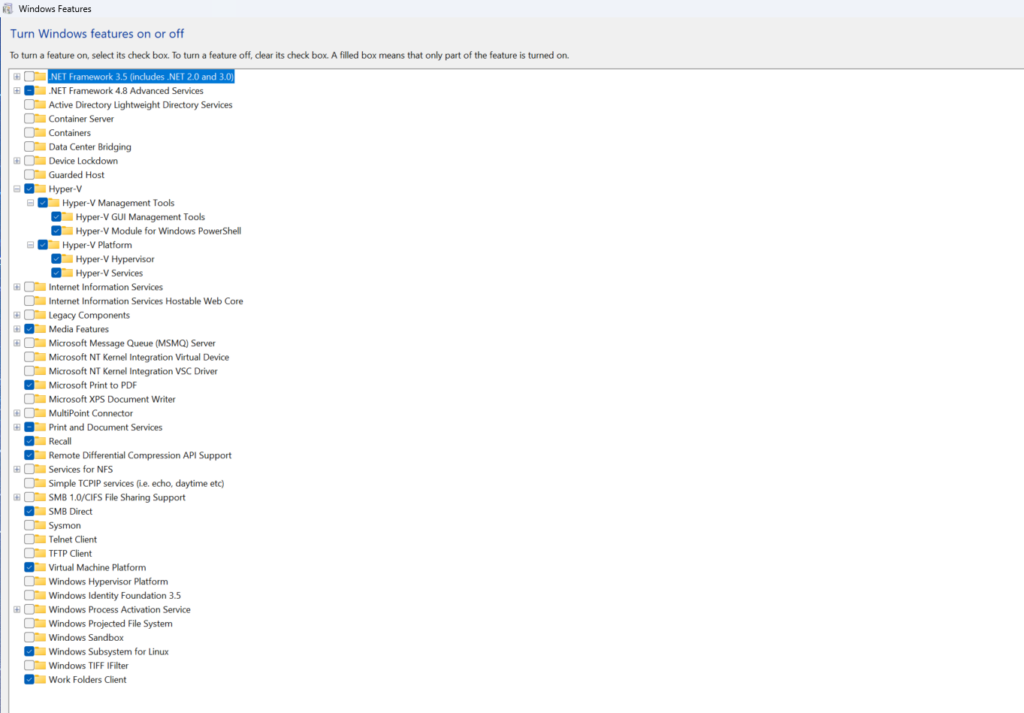
To enable Hyper-V, open “Turn Windows features on or off” and tick the whole Hyper-V tree. That includes the Hyper-V Module for Windows PowerShell, which the rest of this series depends on. After the restart, I pointed Hyper-V’s default virtual machine and virtual disk locations to C:\HyperV\Lab.
The plan
Writing the names and addresses down first saved time at every later step.
| Item | Name | Address |
|---|---|---|
| Laptop, acting as the lab gateway | Host | 10.10.10.1 |
| Domain controller | DC01 | 10.10.10.10 |
| SQL node 1 | SQL01 | 10.10.10.11 |
| SQL node 2 | SQL02 | 10.10.10.12 |
| Cluster name | SQLCLUSTER | 10.10.10.20 |
| Availability group listener | AGLISTENER | 10.10.10.21 |
The domain is lab.local. Pick a subnet your home network does not already use, or the laptop will have two routes to the same range.
Step 1: Create the lab network
Run this on the laptop, in PowerShell as administrator.
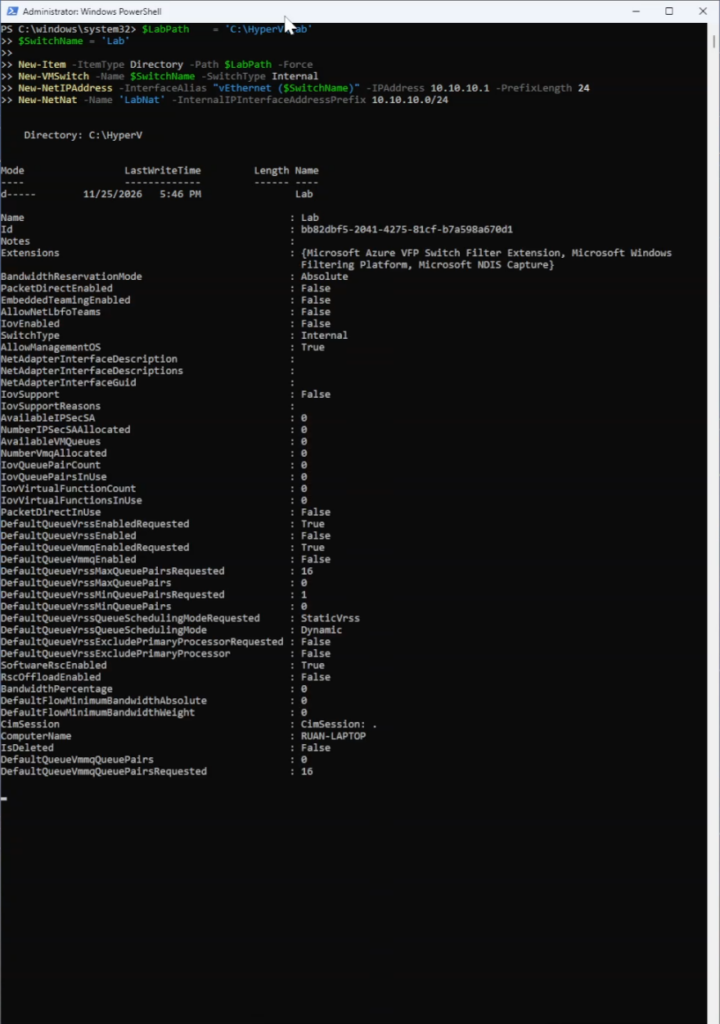
					$LabPath    = 'C:\HyperV\Lab'
$SwitchName = 'Lab'

New-Item -ItemType Directory -Path $LabPath -Force
New-VMSwitch -Name $SwitchName -SwitchType Internal
New-NetIPAddress -InterfaceAlias "vEthernet ($SwitchName)" -IPAddress 10.10.10.1 -PrefixLength 24
New-NetNat -Name 'LabNat' -InternalIPInterfaceAddressPrefix 10.10.10.0/24
An internal switch is a private network that only the laptop and its virtual machines can see. Giving the laptop 10.10.10.1 makes it the gateway, and the NAT rule gives the virtual machines outbound internet access for activation, updates, and module downloads.
My first attempt gave each virtual machine a second adapter on Hyper-V’s Default Switch instead. A domain controller with two adapters registers both addresses in DNS, which misdirects the machines that join later. One adapter with NAT avoids that.
Step 2: Create the domain controller VM
Still on the laptop:
					$IsoPath = 'C:\HyperV\ISO\WindowsServer2025.iso'
$VMName  = 'DC01'

New-VM -Name $VMName -Generation 2 -Path $LabPath `
       -MemoryStartupBytes 4GB `
       -NewVHDPath "$LabPath\$VMName\$VMName.vhdx" -NewVHDSizeBytes 60GB `
       -SwitchName $SwitchName

Set-VM -Name $VMName -ProcessorCount 2 -DynamicMemory `
       -MemoryMinimumBytes 2GB -MemoryMaximumBytes 4GB

Add-VMDvdDrive -VMName $VMName -Path $IsoPath
Set-VMFirmware -VMName $VMName -FirstBootDevice (Get-VMDvdDrive -VMName $VMName)

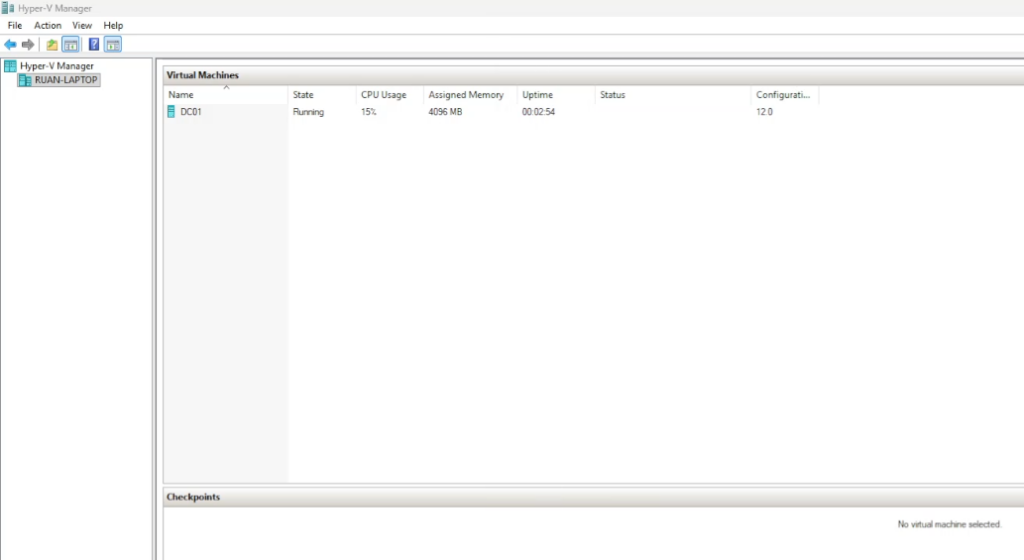
Start-VM $VMName
vmconnect localhost $VMName
Press a key at the boot prompt, then install the Standard Evaluation edition with Desktop Experience. The Windows Server 2025 evaluation runs for 180 days and must be activated online within the first 10, which is one reason the lab network has internet routing.
Step 3: Address, name, and promotion
Run this inside DC01, in PowerShell as administrator.
					hostname    # a generated name such as WIN-XXXXXXXXXXX, not the laptop's name

New-NetIPAddress -InterfaceAlias 'Ethernet' -IPAddress 10.10.10.10 -PrefixLength 24 -DefaultGateway 10.10.10.1
Set-DnsClientServerAddress -InterfaceAlias 'Ethernet' -ServerAddresses 1.1.1.1

Test-NetConnection www.microsoft.com -Port 443    # expect TcpTestSucceeded : True

Rename-Computer -NewName 'DC01' -Restart
The public DNS address is temporary. It lets the server activate and update before it becomes its own DNS server.
After the restart, promote it:
					Install-WindowsFeature AD-Domain-Services -IncludeManagementTools
Install-ADDSForest -DomainName 'lab.local' -DomainNetbiosName 'LAB' -InstallDns
The promotion asks for a Directory Services Restore Mode password and restarts the server when it finishes. Warnings about DNS delegation are normal for a new lab domain. Sign in as LAB\Administrator and check the result:
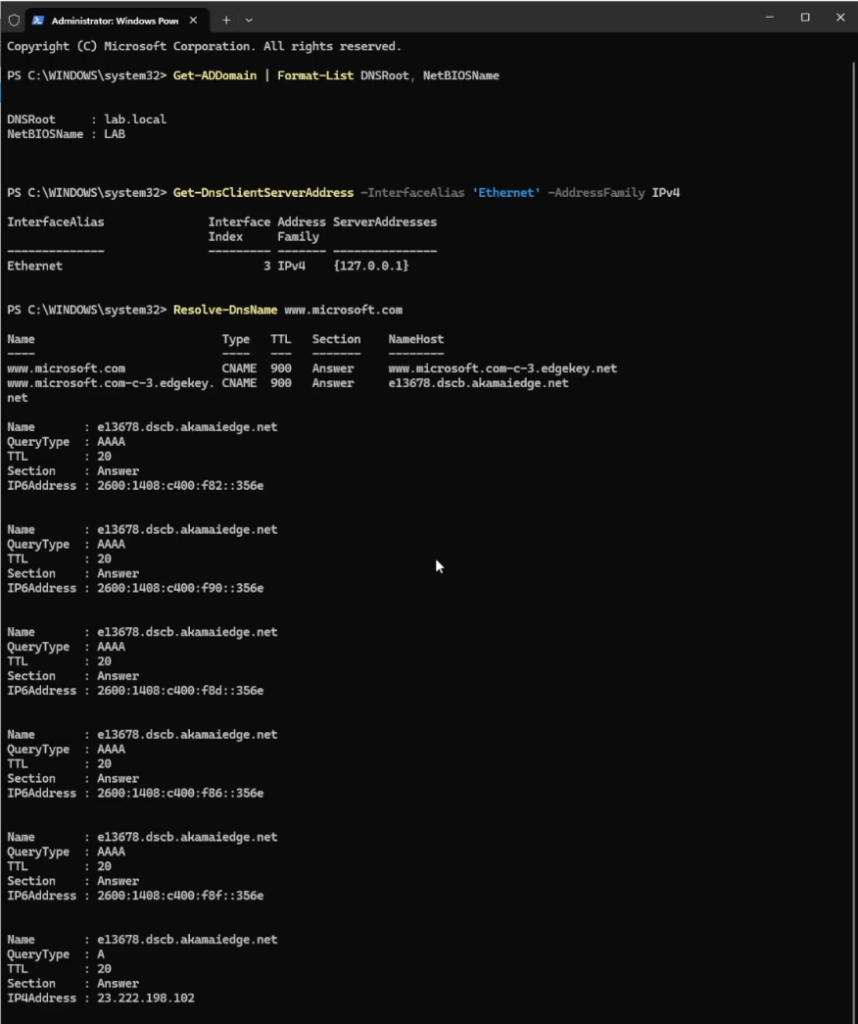
					Get-ADDomain | Format-List DNSRoot, NetBIOSName
Get-DnsClientServerAddress -InterfaceAlias 'Ethernet' -AddressFamily IPv4
Resolve-DnsName www.microsoft.com
You should see lab.local, a DNS server address that points at the server itself, and a successful internet lookup.
Step 4: Service account and witness share
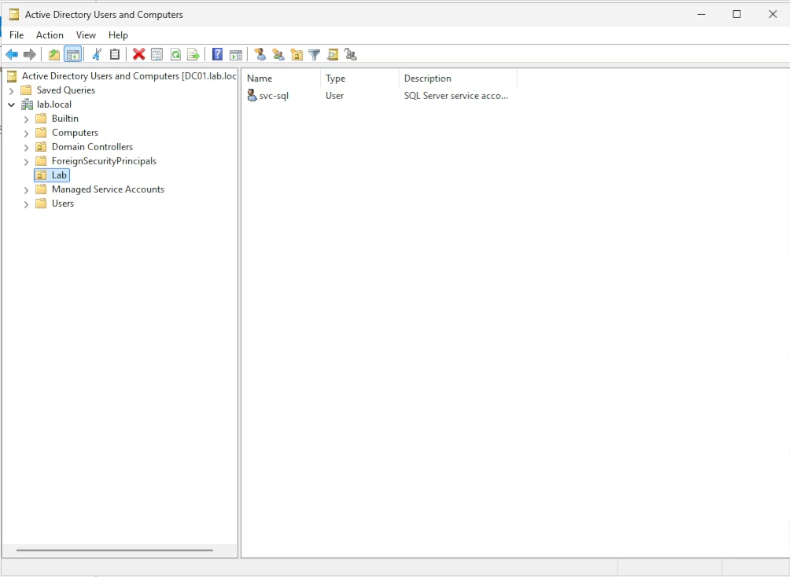
The cluster in Part 2 needs two things from the domain: an account for SQL Server to run as, and a file share to act as the tie-breaking witness. Run this inside DC01.
					New-ADOrganizationalUnit -Name 'Lab' -Path 'DC=lab,DC=local'

$pw = Read-Host -AsSecureString 'Password for svc-sql'
New-ADUser -Name 'svc-sql' -SamAccountName 'svc-sql' `
           -UserPrincipalName 'svc-sql@lab.local' `
           -Path 'OU=Lab,DC=lab,DC=local' `
           -AccountPassword $pw -Enabled $true `
           -PasswordNeverExpires $true -CannotChangePassword $true `
           -Description 'SQL Server service account'

New-Item -ItemType Directory -Path 'C:\Shares\Witness' -Force
New-SmbShare -Name 'Witness' -Path 'C:\Shares\Witness' -FullAccess 'LAB\Domain Computers'
icacls 'C:\Shares\Witness' /grant "LAB\Domain Computers:(OI)(CI)F"
Two lab shortcuts are worth naming. Granting the share to all domain computers works because the cluster’s own computer account does not exist yet; in production you would grant only that account. A production witness would also not sit on a domain controller.
Step 5: Checkpoint the lab
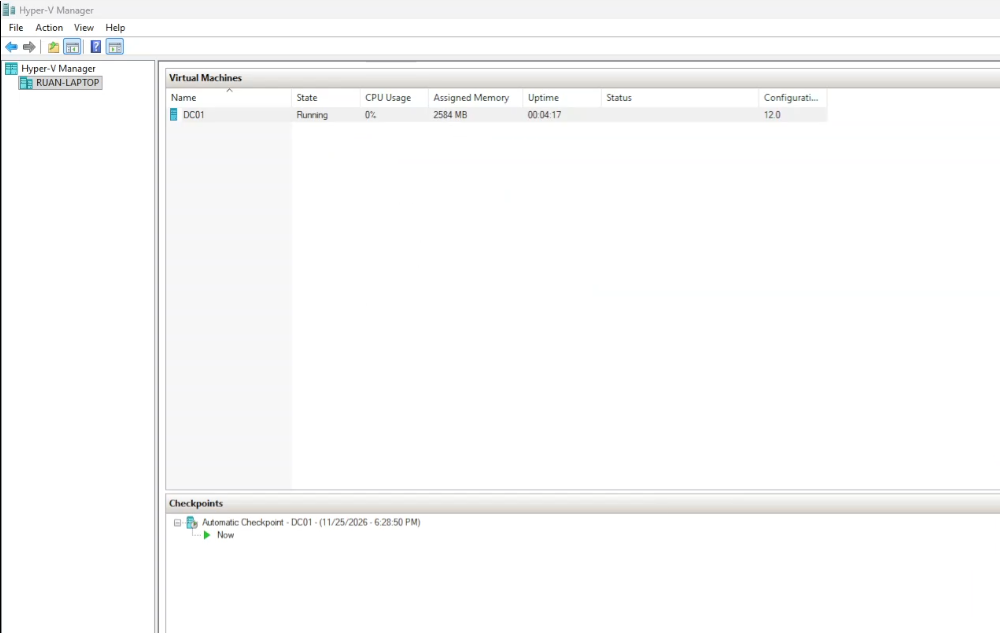
A checkpoint is Hyper-V’s name for what VMware calls a snapshot: a saved point you can roll a virtual machine back to. Taking one at the end of each post means a mistake in the next post costs minutes instead of a rebuild.
Run this on the laptop.
					Get-VM | Set-VM -AutomaticCheckpointsEnabled $false

Stop-VM -Name 'DC01'
Checkpoint-VM -Name 'DC01' -SnapshotName 'Part 1 complete'
Start-VM -Name 'DC01'
The first line turns off automatic checkpoints, which Windows 11 can enable on new virtual machines. They take a checkpoint at every start and quietly use disk space. Shutting the server down first gives a clean, consistent checkpoint.
To roll back later, stop the virtual machine and run Restore-VMCheckpoint -VMName 'DC01' -Name 'Part 1 complete'. A checkpoint is not a backup, because it lives on the same disk as the virtual machine.
The third one is the lesson I would pass on. With several consoles open, a one-line check is cheap insurance.
Where this leaves the lab
The lab now has a routed private network, a domain controller, a SQL service account, and a witness share. Part 2 adds the two SQL Server nodes, the Windows cluster, and the availability group.