This post puts a Power BI report on top of the availability group from Part 2 and keeps it working while the primary node is powered off. It then publishes the report to a Microsoft 365 tenant through an on-premises data gateway.
A login for reporting
The laptop is not a member of the lab domain, so Power BI Desktop cannot sign in to SQL Server with a Windows account. The answer here is a SQL login that can read the health data and nothing else. Run this from SQL01.
First, allow SQL logins on both nodes. The setup in Part 2 allowed Windows accounts only.
					Set-DbatoolsInsecureConnection -SessionOnly

$mixed = "EXEC xp_instance_regwrite N'HKEY_LOCAL_MACHINE', N'Software\Microsoft\MSSQLServer\MSSQLServer', N'LoginMode', REG_DWORD, 2"
Invoke-DbaQuery -SqlInstance 'SQL01', 'SQL02' -Query $mixed

Restart-DbaService -ComputerName 'SQL02' -Type Engine -Force
Start-Sleep -Seconds 60
Restart-DbaService -ComputerName 'SQL01' -Type Engine -Force
Restarting the primary triggers an automatic failover, which is the cluster doing its job. Everything after this point connects through the listener, so it does not matter which node ends up in charge.
Then create the login:
					$pw = Read-Host -AsSecureString 'Password for pbi_reader'
New-DbaLogin  -SqlInstance 'SQL01' -Login 'pbi_reader' -SecurePassword $pw
Copy-DbaLogin -Source 'SQL01' -Destination 'SQL02' -Login 'pbi_reader'

Invoke-DbaQuery -SqlInstance 'SQL01', 'SQL02' -Query 'GRANT VIEW SERVER STATE TO pbi_reader; GRANT VIEW ANY DEFINITION TO pbi_reader;'

Invoke-DbaQuery -SqlInstance 'AGLISTENER' -Database 'LabDB' -Query 'CREATE USER pbi_reader FOR LOGIN pbi_reader; ALTER ROLE db_datareader ADD MEMBER pbi_reader;'
The detail that matters is Copy-DbaLogin. Databases replicate between the nodes, but logins do not. Copying the login gives it the same identifier on both nodes, so the report keeps its access after a failover.
A health view
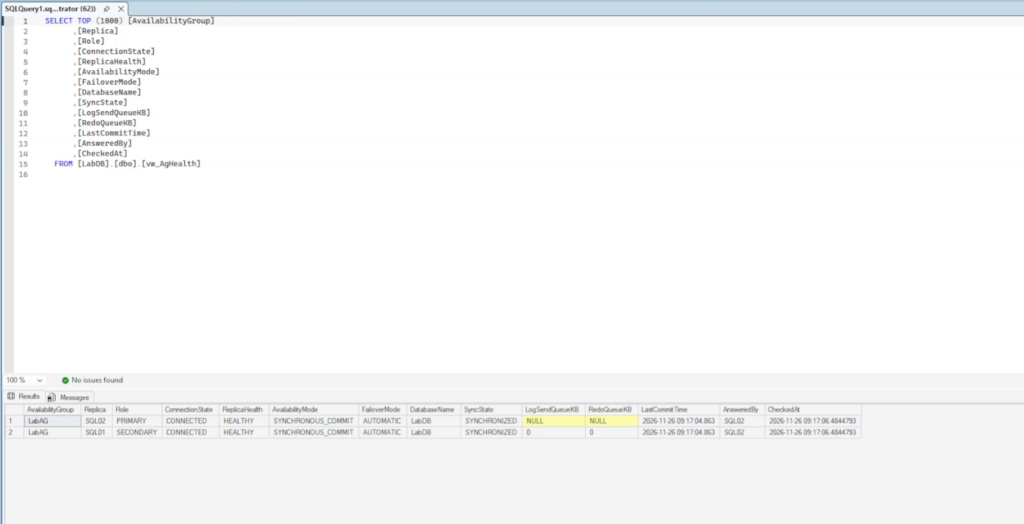
SQL Server exposes the state of an availability group through system views. This view gathers the useful columns into one place and lives in LabDB, so it replicates to both nodes.
					Invoke-DbaQuery -SqlInstance 'AGLISTENER' -Database 'LabDB' -Query @'
CREATE VIEW dbo.vw_AgHealth AS
SELECT ag.name                          AS AvailabilityGroup,
       ar.replica_server_name           AS Replica,
       ars.role_desc                    AS Role,
       ars.connected_state_desc         AS ConnectionState,
       ars.synchronization_health_desc  AS ReplicaHealth,
       ar.availability_mode_desc        AS AvailabilityMode,
       ar.failover_mode_desc            AS FailoverMode,
       adc.database_name                AS DatabaseName,
       drs.synchronization_state_desc   AS SyncState,
       drs.log_send_queue_size          AS LogSendQueueKB,
       drs.redo_queue_size              AS RedoQueueKB,
       drs.last_commit_time             AS LastCommitTime,
       @@SERVERNAME                     AS AnsweredBy,
       SYSDATETIME()                    AS CheckedAt
FROM sys.availability_groups ag
JOIN sys.availability_replicas ar                  ON ar.group_id = ag.group_id
JOIN sys.dm_hadr_availability_replica_states ars   ON ars.replica_id = ar.replica_id
LEFT JOIN sys.dm_hadr_database_replica_states drs  ON drs.replica_id = ar.replica_id
LEFT JOIN sys.availability_databases_cluster adc   ON adc.group_database_id = drs.group_database_id;
'@
Two columns make the dashboard work. AnsweredBy names the node the listener routed the query to, which is the current primary. CheckedAt shows when the data was read, so you can see the report refreshing.
Connect Power BI Desktop
The laptop does not use the lab’s DNS, so add the lab names to its hosts file. Run this on the laptop, in PowerShell as administrator.
					Add-Content -Path "$env:SystemRoot\System32\drivers\etc\hosts" -Value "`n10.10.10.21`tAGLISTENER`n10.10.10.11`tSQL01`n10.10.10.12`tSQL02"
Test-NetConnection AGLISTENER -Port 1433    # expect TcpTestSucceeded : True
Then, in Power BI Desktop:
- Choose Get data > SQL Server.
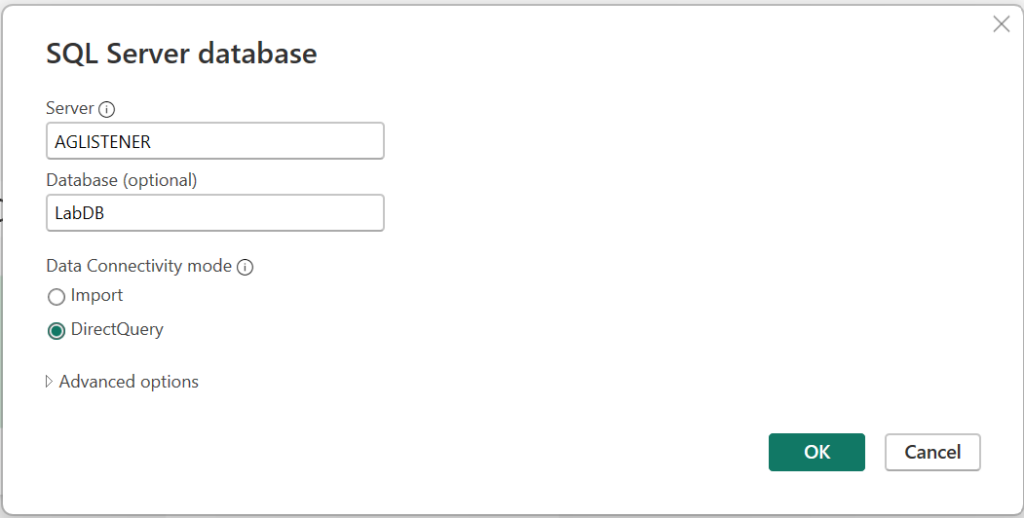
- Enter
AGLISTENERas the server andLabDBas the database, and select DirectQuery. - On the credentials screen, switch to the Database tab and sign in as
pbi_reader. - Tick
vw_AgHealthand choose Load.
DirectQuery is the important choice. Each refresh asks the cluster for its current state instead of showing a stored copy.
The nodes use self-signed certificates, so Power BI may warn that the connection cannot be encrypted, or refuse it as untrusted. Accept the warning if you get one. If the connection is refused, set a Windows environment variable named PBI_SQL_TRUSTED_SERVERS to AGLISTENER and restart Power BI Desktop.
Build the page
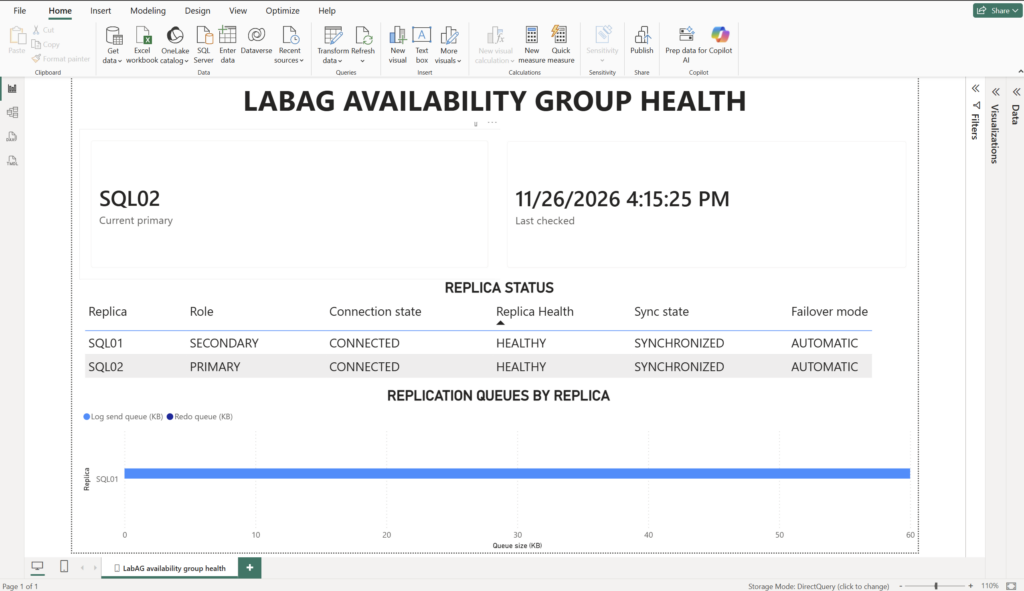
The page has four visuals:
- Current primary: a card showing
AnsweredBy. - Last checked: a card showing the latest
CheckedAt. - Replica table:
Replica,Role,ConnectionState,ReplicaHealth,SyncState, andFailoverMode. - Queue chart: a bar chart of
LogSendQueueKBandRedoQueueKBby replica. Bars near zero are the healthy state.
Give each visual a descriptive title and alt text. If you colour the Role column, keep the text as well, so the page does not depend on colour alone.
To make the page update on its own, select the page background, open Page refresh in the Format pane, and set automatic page refresh to 5 seconds. Microsoft’s guide to automatic page refresh in Power BI covers the options.
Fail over while the report is open
Start with a planned failover. This finds the current primary and moves the group to the other node. Run it from SQL01.
					$primary = (Invoke-DbaQuery -SqlInstance 'AGLISTENER' -Query 'SELECT @@SERVERNAME AS n').n
$target  = if ($primary -eq 'SQL01') { 'SQL02' } else { 'SQL01' }
Invoke-DbaAgFailover -SqlInstance $target -AvailabilityGroup 'LabAG' -Confirm:$false
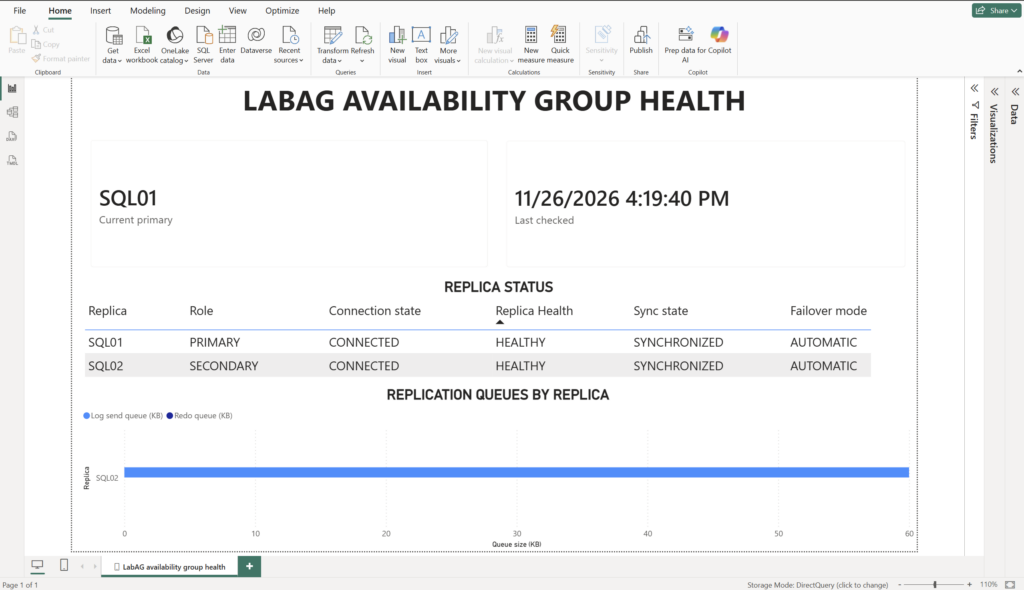
Within a refresh or two, the “Current primary” card changes and the two rows in the table swap roles.
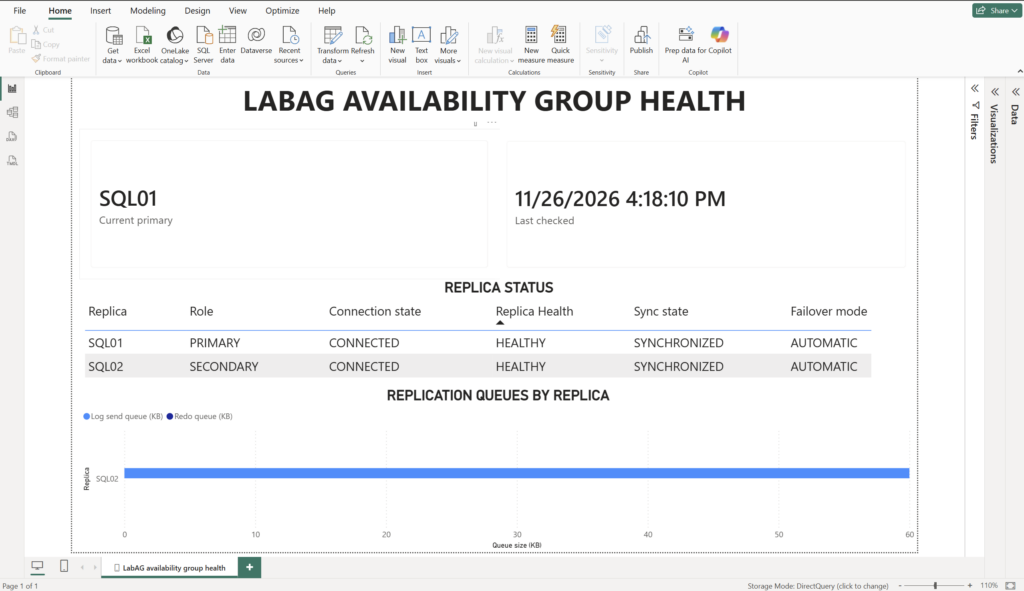
The unplanned version is the stronger demonstration. On the laptop, power off whichever node the card names as primary:
Stop-VM -Name 'SQL02' -TurnOff # use the node shown as the current primary
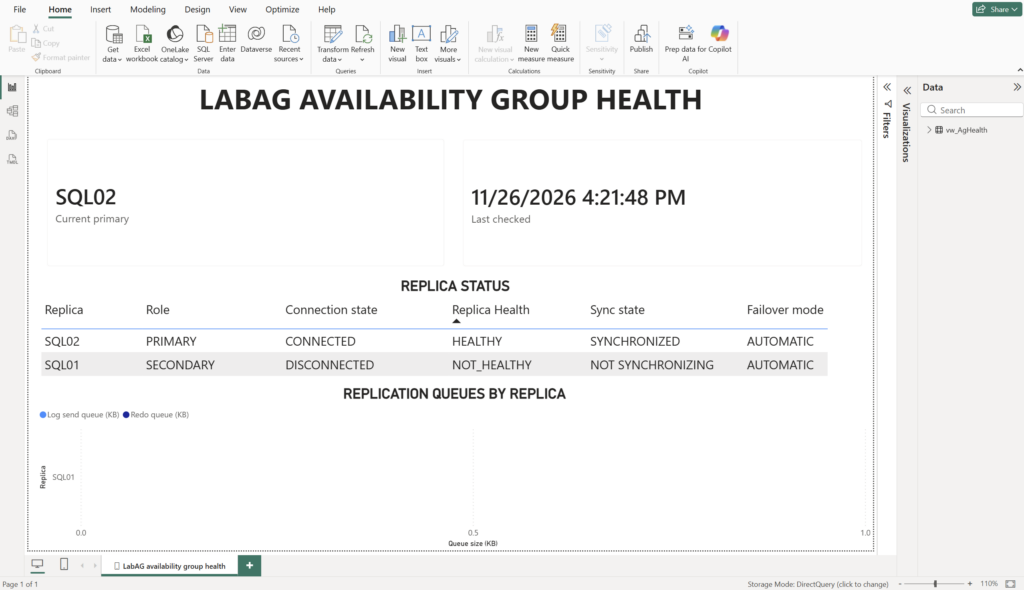
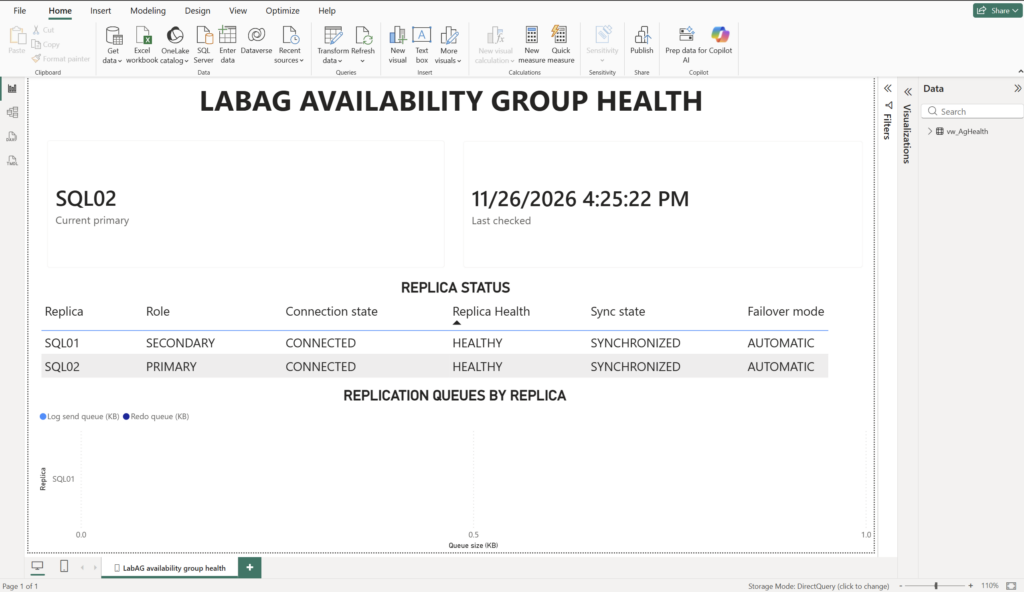
Expect a few seconds of errors on the visuals while the listener moves. Then the card switches to the surviving node, and the table shows the other node as disconnected. Start the node again with Start-VM, and it rejoins as the secondary and resynchronizes without any action from you.
Publish through a gateway
The Power BI service cannot reach a lab network on a laptop. An on-premises data gateway relays its queries instead, for as long as the laptop is on and the virtual machines are running.
- Sign in to Power BI Desktop with the tenant account and publish the report to My workspace.
- Install the on-premises data gateway in standard mode on the laptop, and register it as
LabGateway. It cannot be installed on a domain controller. - Let the gateway trust the lab’s certificates, as shown below.
- Add the SQL connection in the Power BI service.
- Map the semantic model to the gateway.
For step 3, open C:\Program Files\On-premises data gateway\Microsoft.PowerBI.DataMovement.Pipeline.GatewayCore.dll.config as administrator, after saving a backup copy. Set the SqlTrustedServers entry, then restart the gateway with Restart-Service PBIEgwService.
					<setting name="SqlTrustedServers" serializeAs="String">
    <value>AGLISTENER,SQL01,SQL02</value>
</setting>
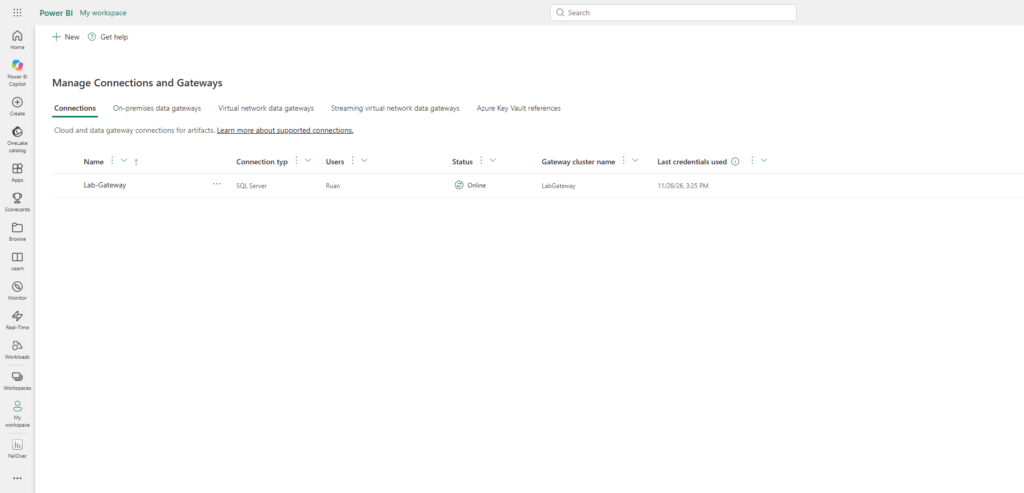
For step 4, open Settings > Manage connections and gateways in the Power BI service and add a new on-premises connection. Microsoft documents the screens in add or remove a gateway data source.
| Field | Value |
|---|---|
| Gateway cluster name | LabGateway |
| Connection type | SQL Server |
| Server | AGLISTENER |
| Database | LabDB |
| Authentication method | Basic, as pbi_reader |
| Privacy level | Organizational |
For step 5, open the semantic model’s settings, expand Gateway and cloud connections, and map the data source to the new connection.
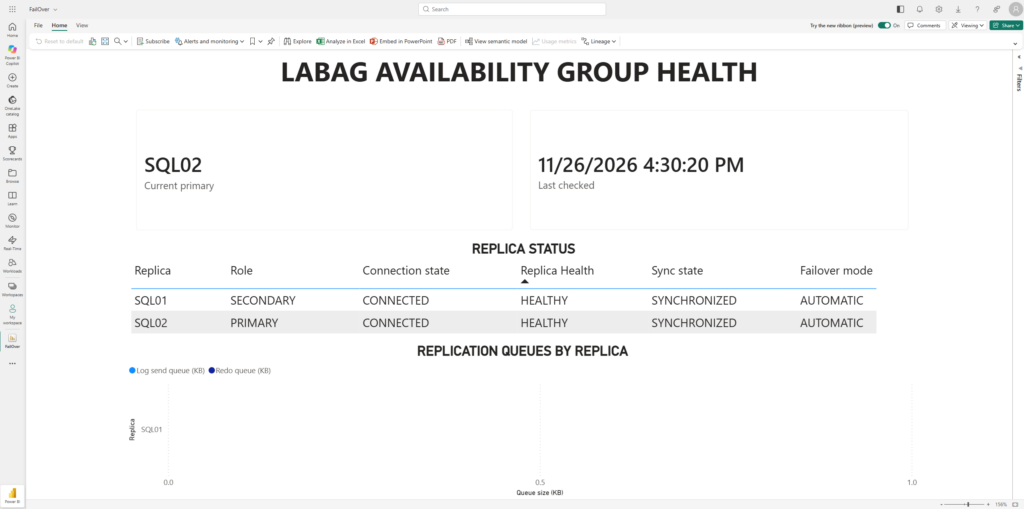
The published report refreshes less eagerly than the desktop one. In a personal or Pro workspace, the service enforces a 30-minute minimum for automatic page refresh. Record the live failover in Power BI Desktop and treat the published report as the shareable copy.
Checkpoint the lab
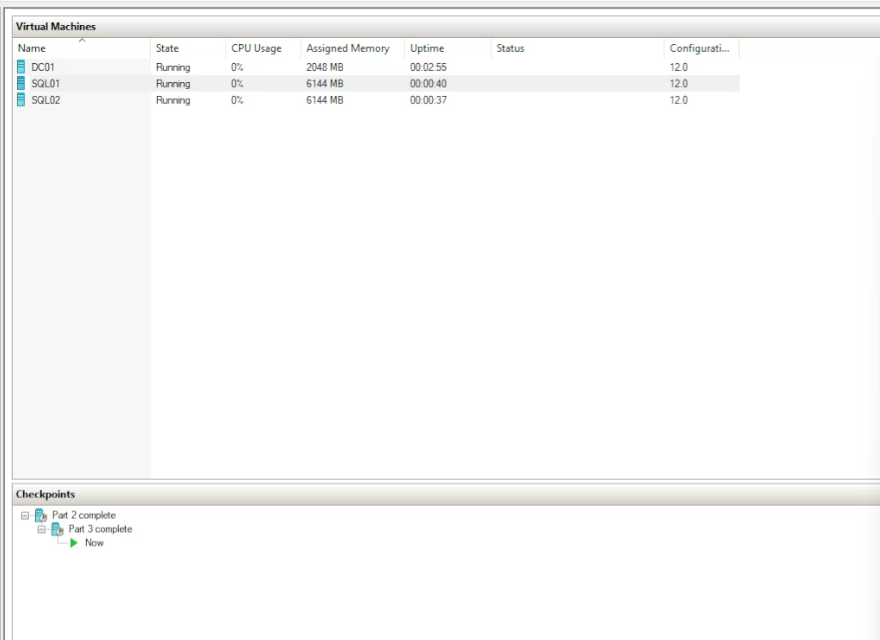
Checkpoint the three machines as a set again, using the same pattern as Part 2. Run this on the laptop.
					$label = 'Part 3 complete'

Stop-VM -Name 'SQL01', 'SQL02'
Stop-VM -Name 'DC01'

Get-VM -Name 'DC01', 'SQL01', 'SQL02' | Checkpoint-VM -SnapshotName $label

Start-VM -Name 'DC01'
Start-Sleep -Seconds 90
Start-VM -Name 'SQL01', 'SQL02'
This checkpoint covers the reporting login, the health view, and the mixed sign-in setting, because they live inside the virtual machines. It does not cover the report file, the gateway, or the hosts file entries, which live on the laptop. Keep a copy of the .pbix file with your scripts.
What I would tell someone starting this
- Logins do not replicate. A login created on one node only will work until the first failover and then fail.
- Names must match exactly. Power BI links a published model to a gateway connection by server and database name.
- Self-signed certificates need an explicit trust setting in both Power BI Desktop and the gateway. Production servers should have certificates from a trusted authority instead.
Where this leaves the lab
The availability group now has a live dashboard and a published report. Part 4 adds Microsoft Entra sign-in through Azure Arc.